

Every command in every app, one key away.
Press Option-Space in any Mac app. Apropos lists what that app can do, what you can do with what you selected, and the commands you made yourself.
Version 0.1.0, macOS 14 or later.
Or press the keys, here or on your keyboard.
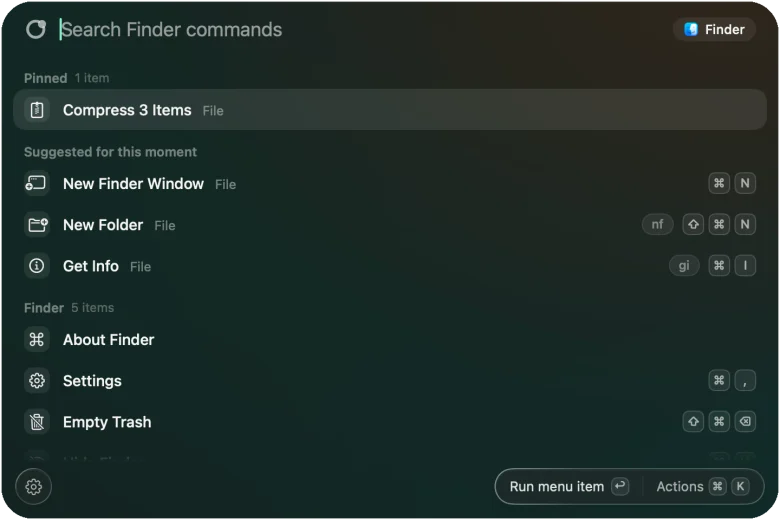
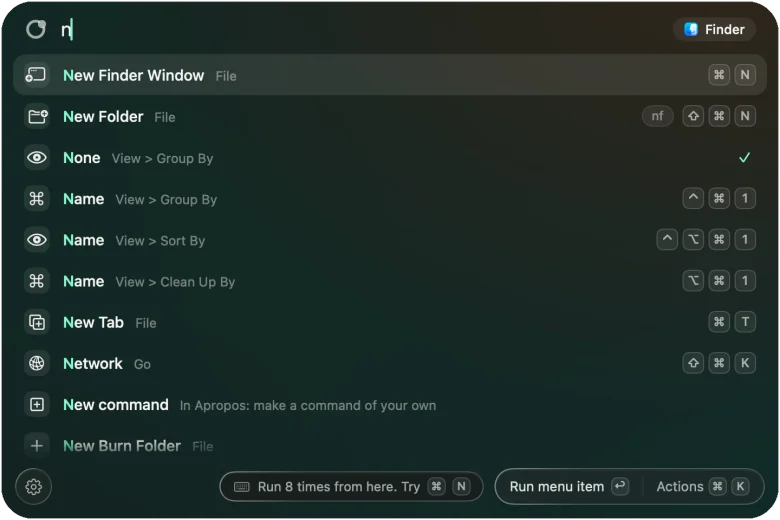
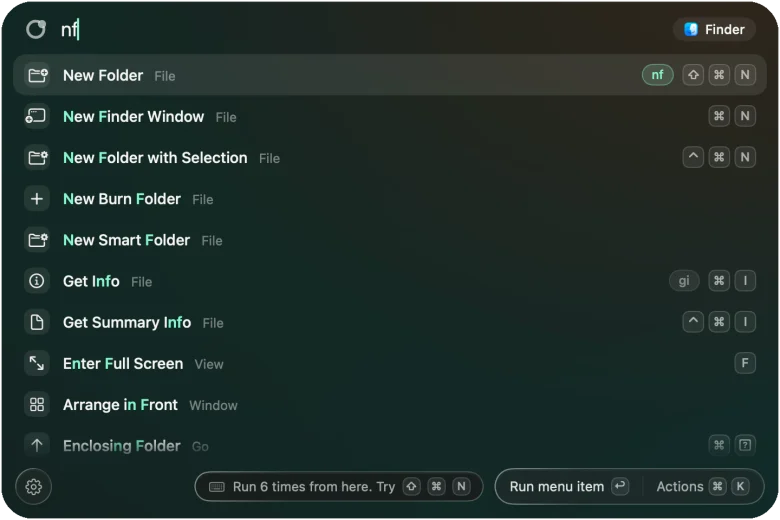
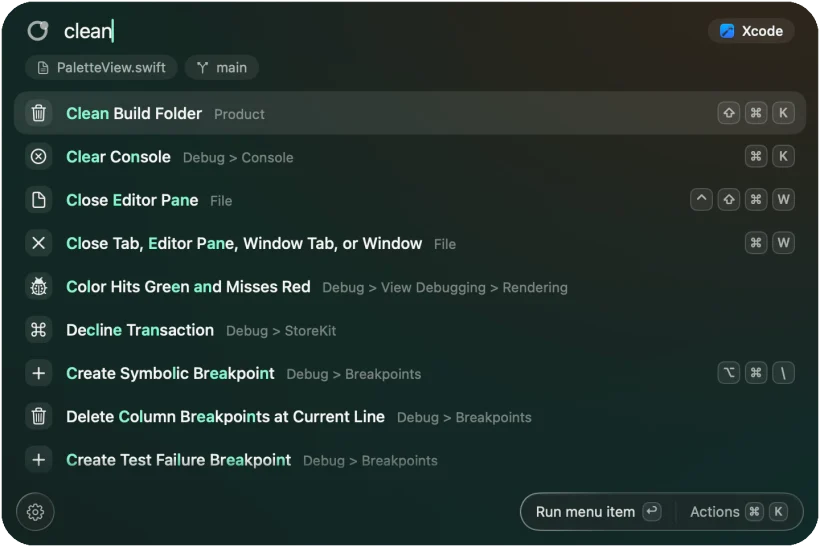
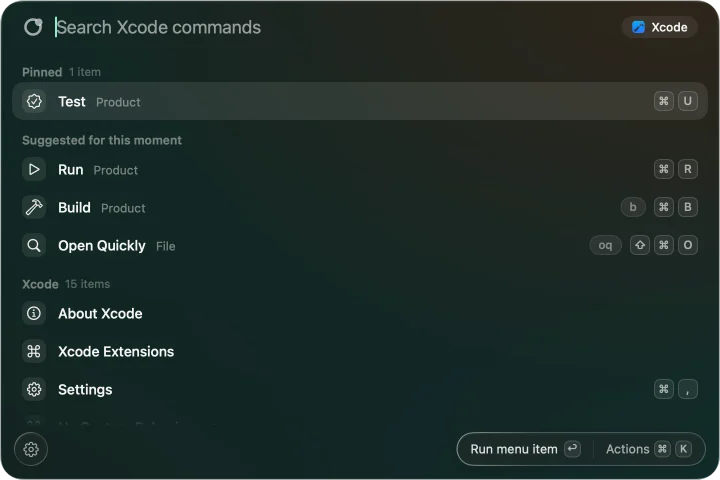
Four menus down in Xcode.
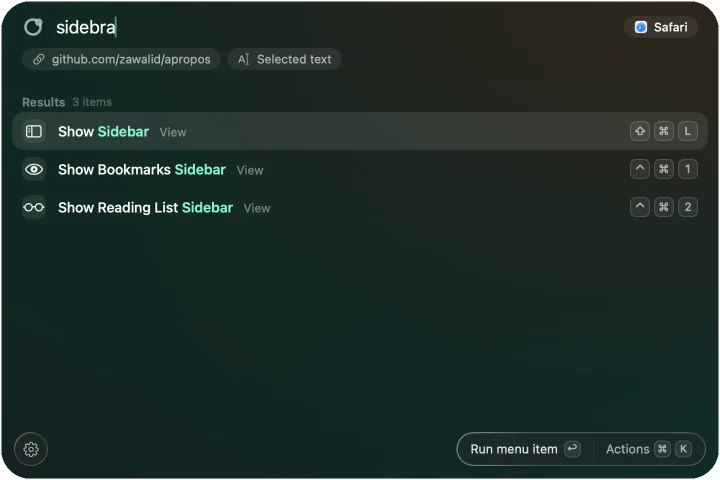
Type cleanand commands from deep in the Debug menu come up next to the top ones, each with its path and its shortcut.
Slips are fine.
Typing shwo still finds Show. Two letters swapped are forgiven, accents and capitals never matter, and the short names you type often are remembered.
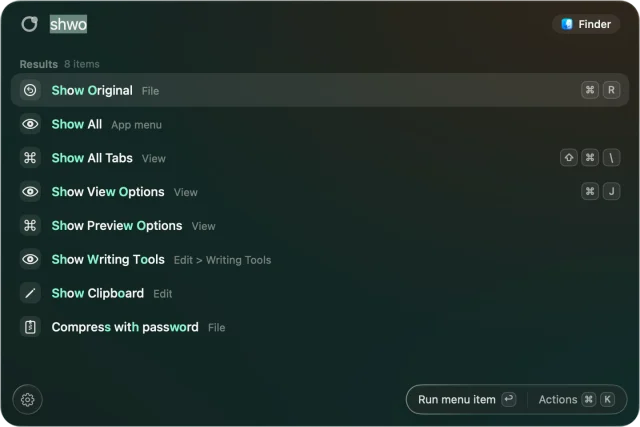
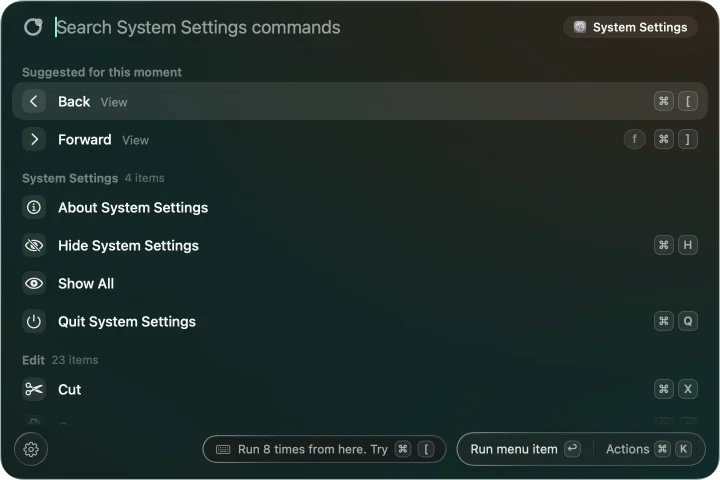
It opens on the app in front.
If an app has a menu bar, Apropos reads it. No plugin per app, no waiting for anyone to add support. Fourteen of them pass here; every other app with a menu bar works the same way.
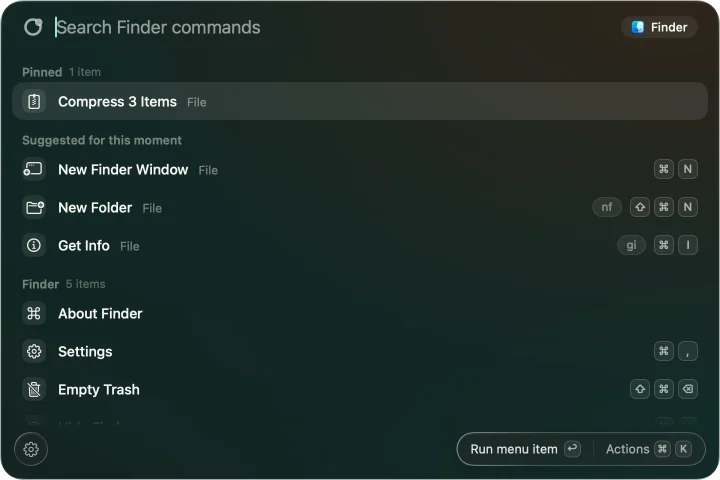
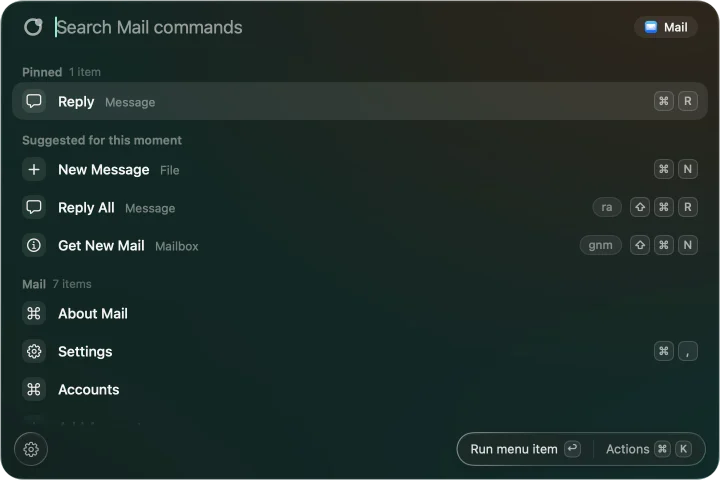
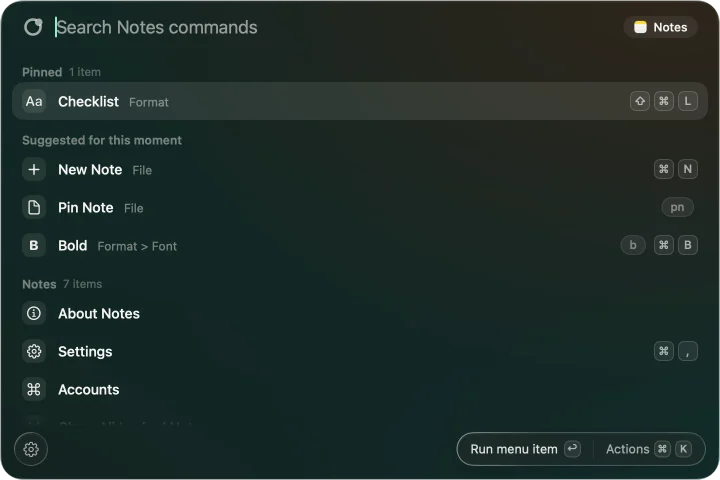
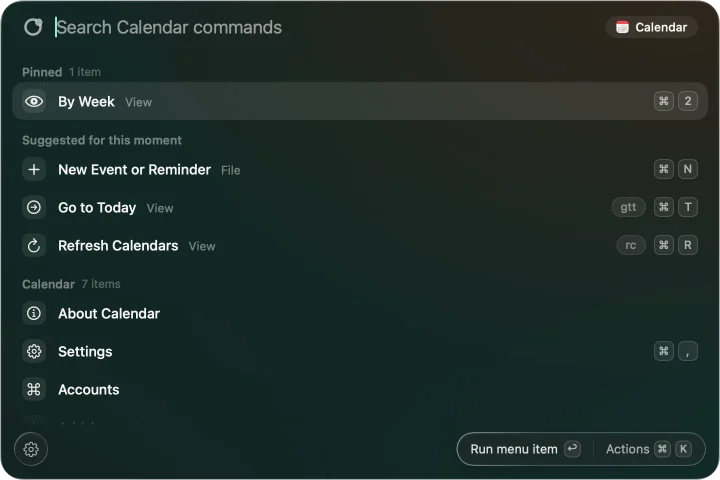
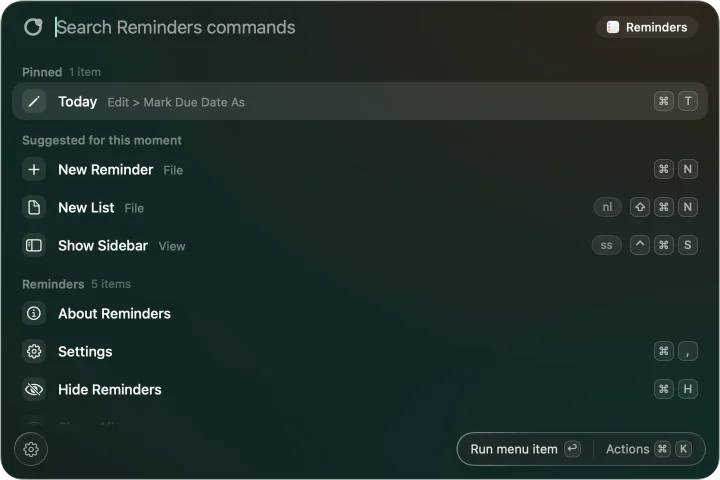
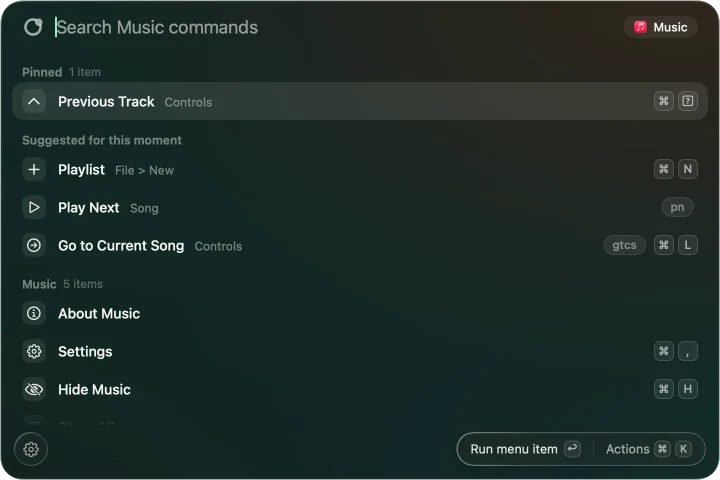
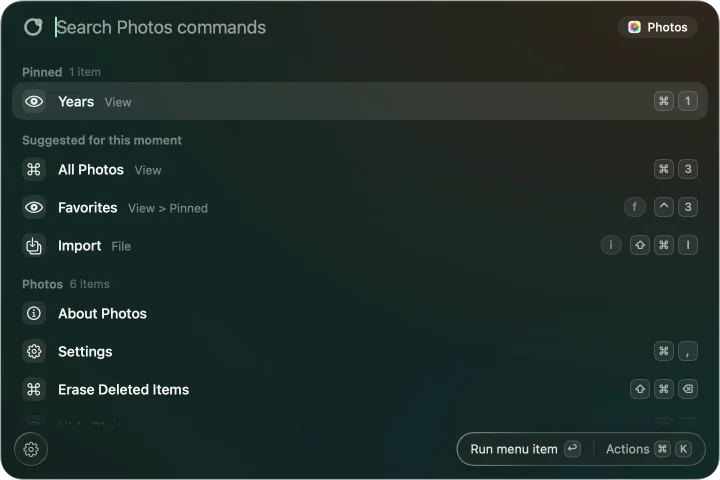
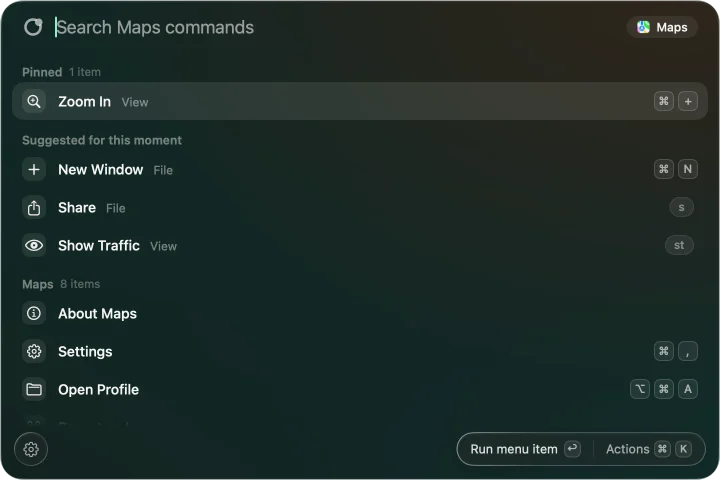
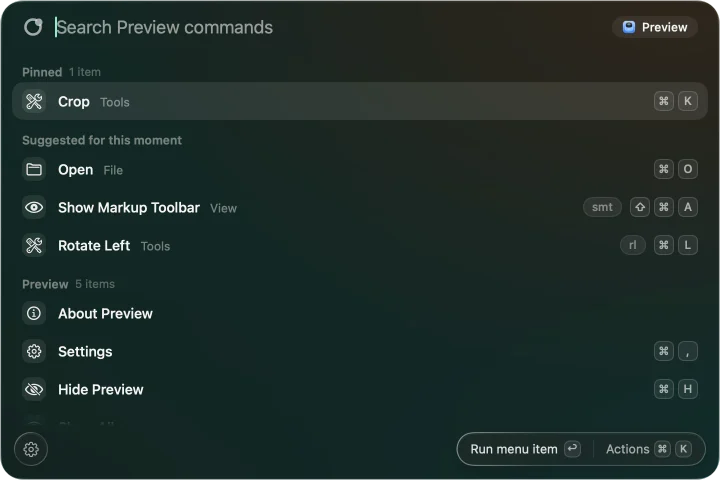
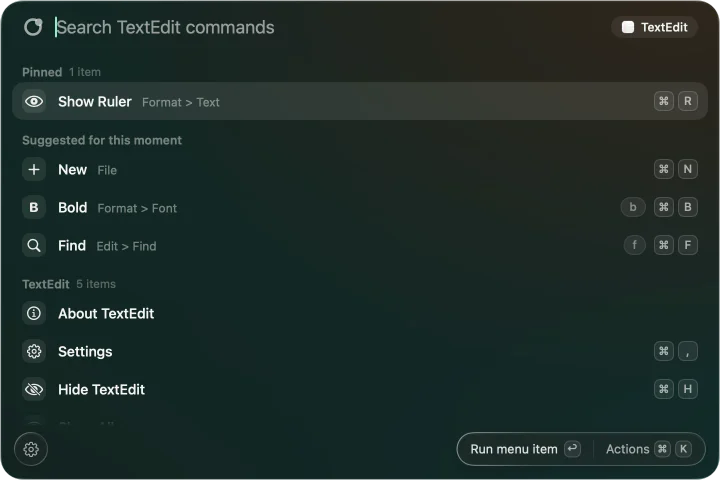
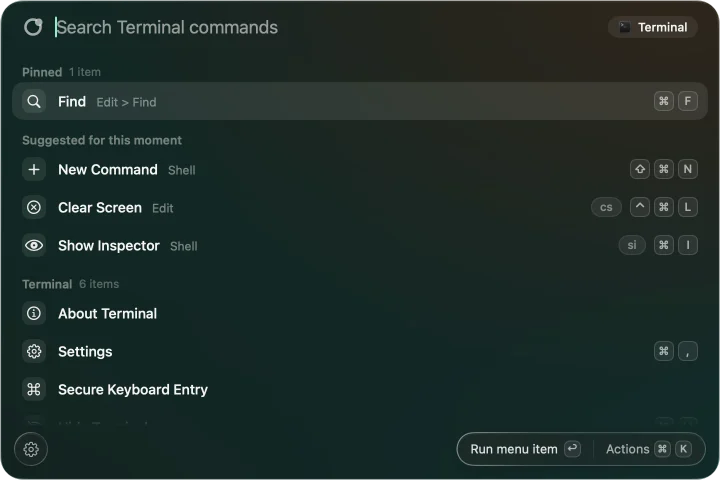
35 actions for what you selected. 22 of them for text, and they work right here.
Select a few words of this paragraph,
the way you would in Mail or Safari. Apropos opens on what you selected with the actions that fit it, and the result takes the place of your selection. These are the same text functions the app runs, so pick one and watch the page change.
Select any words above, or use this phrase.
This page
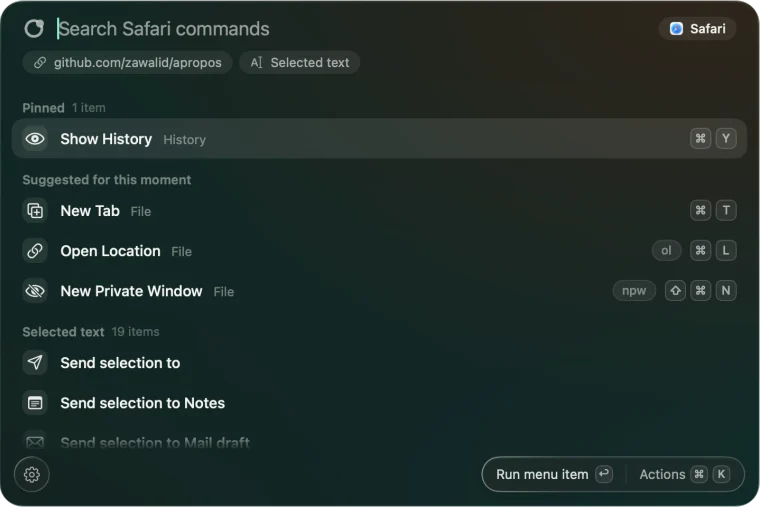
It reads more than text.
- Files in Finder 6 actions
- Copy path
~/Desktop/Invoices/2026-10.pdf- Copy path, Copy name, Reveal in Finder, Open in Terminal here, Compress to zip, Copy SHA-256
- The page in your browser 3 actions
- Copy as Markdown link
[Swift.org](https://swift.org)- Copy URL, Copy as Markdown link, Copy page title
- A folder or a repository 4 actions
- Copy branch name
feature/send-to- Open folder in Terminal, Copy branch name, Copy short commit hash, Open repository on the web
Secure fields are never read, and password managers never give up their selection. Each kind of context can be switched off, and apps can be listed that are never read. A selection never becomes code.
Pass it on.
 Safari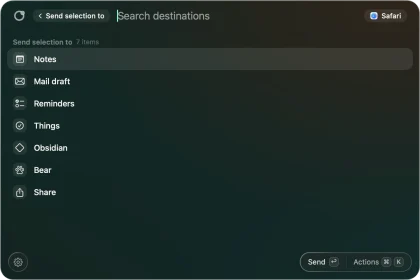
Send it where it belongs.
Notes, Reminders, Things, Obsidian, Bear, a Mail draft, a folder or the Share menu. Each shows only when its app is installed.
 UPPERCASE, then Notes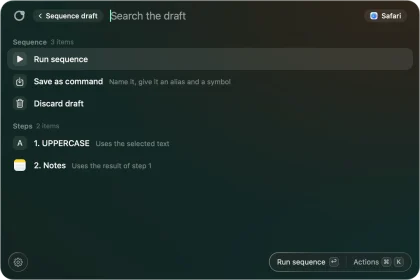
Chain steps across apps.
Command-K adds any row to a draft. Each step gets the result of the one before, so Notes receives the capitals, not the original.
 Mail draft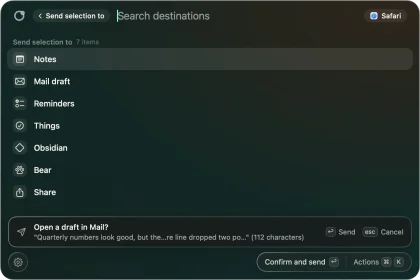
Nothing leaves without a second Return.
Anything that leaves a trace waits with a one-line preview of what will go. A Mail draft never sends itself.
9 of 12 times
After Duplicate 3 Items in Finder, you chose Move 3 Items to Trash 9 of 12 times.
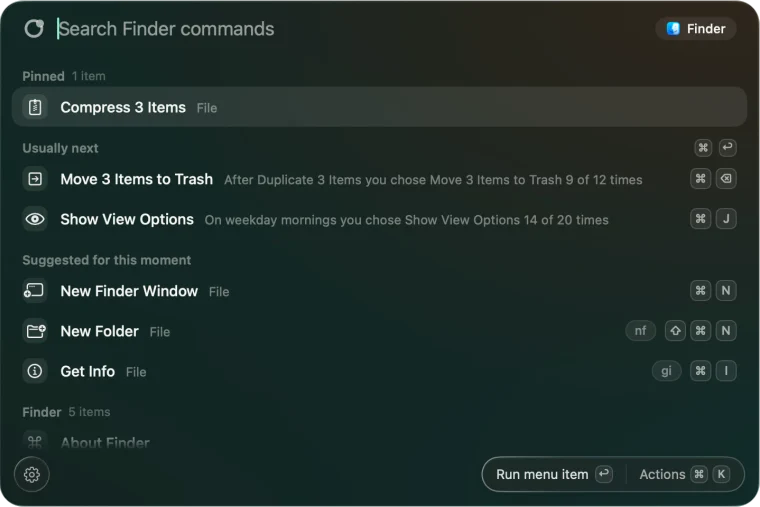
It learns what comes next. On this Mac.
From command names, apps and times only, never your selection, addresses or documents. It says why, and Command-Return runs it. Settings, Prediction lists what it learned, with Forget for each.
Make your own.
A link, a Shortcut or a program becomes a row in the list. Write it once, reach it four ways. It asks before its first run, and it can say what it needs, like selected text.
{
  "command": {
    "title": "Speak selection",
    "requires": ["selectedText"],
    "backend": { "type": "shell",
      "executable": "/usr/bin/say",
      "stdin": "text" }
  },
  "aliases": ["say"],
  "hotkey": { "keyCode": 1,
    "modifiers": ["control", "option"] },
  "allowFromURL": true
}
Type its alias
The alias puts it first, whatever else matches.
Press its key
From any app. A key that macOS, the panel or another command uses is flagged.
apropos://run?command=say&text=helloOpen its link
From a Raycast quicklink, Alfred or a script, once you allow it from outside.
Use it in Shortcuts
The Run Apropos Command action lists the commands you allowed.
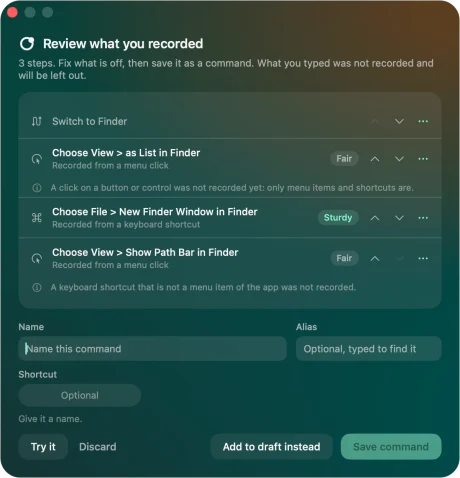
Record it once Early
Choose Record and use the menus of any app, then stop with Control-Option-Command-R. The review lists every step in plain words with how sturdy it is, tries each one against the apps without pressing anything, and saves it as a command. Typed text is never recorded.
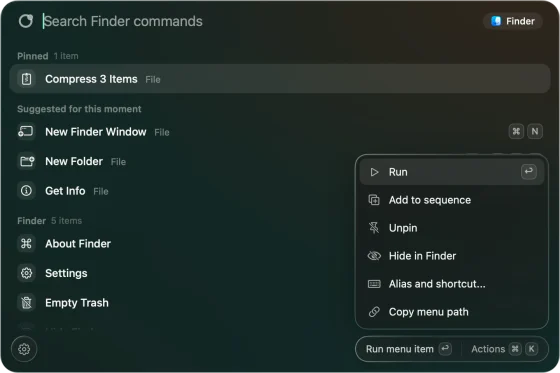
Keys for any menu item Early
Command-K on a menu item gives it an alias and a shortcut of its own. One key can serve items in different apps, since it runs the item of the app in front.
Keep your launcher.
Apropos does not launch apps, search files or keep your clipboard. Raycast, Alfred and Spotlight do that well, and Apropos sits next to any of them. It answers a narrower question: what can I do here, right now.


Compare Apropos with
Menu commands of the app in front
Actions on what you selected
Menu commands of the app in front
Actions on what you selected
Account
AproposNone
SpotlightPart of macOS
Price
AproposNot announced yet
SpotlightIncluded with macOS
Menu commands of the app in front
Actions on what you selected
Menu commands of the app in front
Actions on what you selected
AproposYes: Built in for text, files, the page, the folder and git, plus your own
Help menuNo: None
Launch apps and search files
AproposNo: No, on purpose
Help menuNo: No
Clipboard history
AproposNo: No
Help menuNo: No
Account
AproposNone
Help menuPart of macOS
Price
AproposNot announced yet
Help menuIncluded with macOS
Apropos makes0network connections.


The update check is off until you turn it on.
No account, no analytics, no server. Nothing about your screen or your selection leaves your Mac.

Settings, Privacy and data: what is kept with its size, Forget for each, Export all my data.
Read when you open the panel
- The menus of the app in front
- Your selection
- The page address and title
- The folder and git branch
- Selected files in Finder
Held in memory while the list is open, then dropped.
Kept, as small files you can read
usage.jsonWhich commands you run, pins, aliasessequence.jsonWhat you ran after what, for Usually nextsettings.jsonYour choices in Settingssend-folders.jsonFolders you send files tocommands/Your own commands, one file eachdestinations/Your own places to send to
In ~/Library/Application Support/Apropos, each with Reveal and Forget.
Never kept
- What you selected or sent
- Web addresses and document names
- Anything you typed while recording
- Secure fields, which are never read
What it asks macOS for
- Accessibility Needed
- Reads the menus of the app in front and presses the item you choose.
- Automation of Finder The first time you act on files
- Asks Finder which files are selected. macOS asks you once.
- Input Monitoring Only to recordEarly
- Lets a recording notice the menu items and shortcuts you use. Nothing is requested until you press Allow.
From download to the first Option-Space.
- 1
Open the download
Move Apropos to Applications and open it. It lives in the menu bar
 , with no Dock icon.
 - 2
Allow Accessibility
The welcome guide says why, opens System Settings, Privacy & Security, Accessibility, and notices the change without a restart.
- 3
Press Option-Space
In any app. Type a few letters of what you want, press Return. Escape closes it.
Questions
Does it replace Raycast, Alfred or Spotlight?
No. It does not launch apps, search files or keep your clipboard. Keep your launcher for those. Apropos opens on the app you are in: its menus, actions for your selection, and your own commands.
Which key opens it?
Option-Space, and you can change it in Settings. Raycast and Alfred also use Option-Space by default, so if you use one of them, move one of the two to another key.
Which apps does it work with?
Any app with a menu bar, from Finder and Xcode to apps built on web views. In apps built on web views it lists the menu bar, not the controls inside the window. Context actions work in any app where the selection or page can be read.
Why does it need Accessibility?
To read the menus of the app in front and to press the item you choose. macOS has no other way to do that. Apropos explains this before asking, and opens the right page of System Settings.
Does anything leave my Mac?
No. There is no account and no analytics, and it makes no network connections. The update check is off until you turn it on in Settings.
What does it learn, and how do I make it forget?
Which commands you run, in which app and when, so it can rank them and offer what usually comes next. Never your selection, web addresses, document names or what you type. Settings, Prediction lists your habits with Forget, and Privacy and data forgets everything in one step.
Can my selection run as code?
No. Values reach a command only as separate arguments, standard input or encoded link parts, never inside a script. A command definition that breaks this rule is refused when it loads, and a new command asks before its first run.
Can other apps run my commands?
Yes, the ones you allow: through apropos:// links, which work from Raycast quicklinks, Alfred and scripts, and through the Run Apropos Command action in Shortcuts. The first run asks you, once.
Is recording ready?
It works and has a review step, but it is new and has not been checked enough on real Macs yet, so it is marked Early. The same goes for aliases and shortcuts on menu items. Typed text is never recorded.
Which Macs does it run on?
macOS 14 Sonoma or later.
No question matches. Ask on GitHub